Update Automation
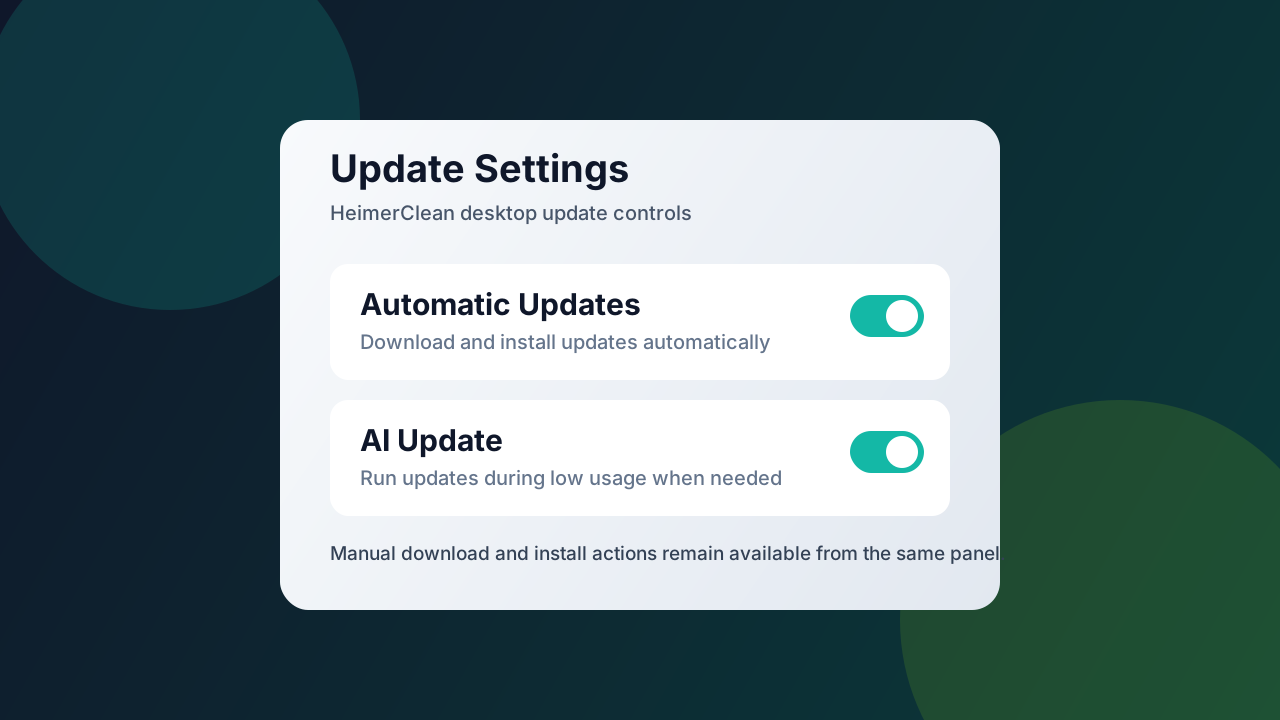
HeimerClean supports two update controls in Settings > Updates:
- Automatic Updates
- AI Update
How The Two Switches Work
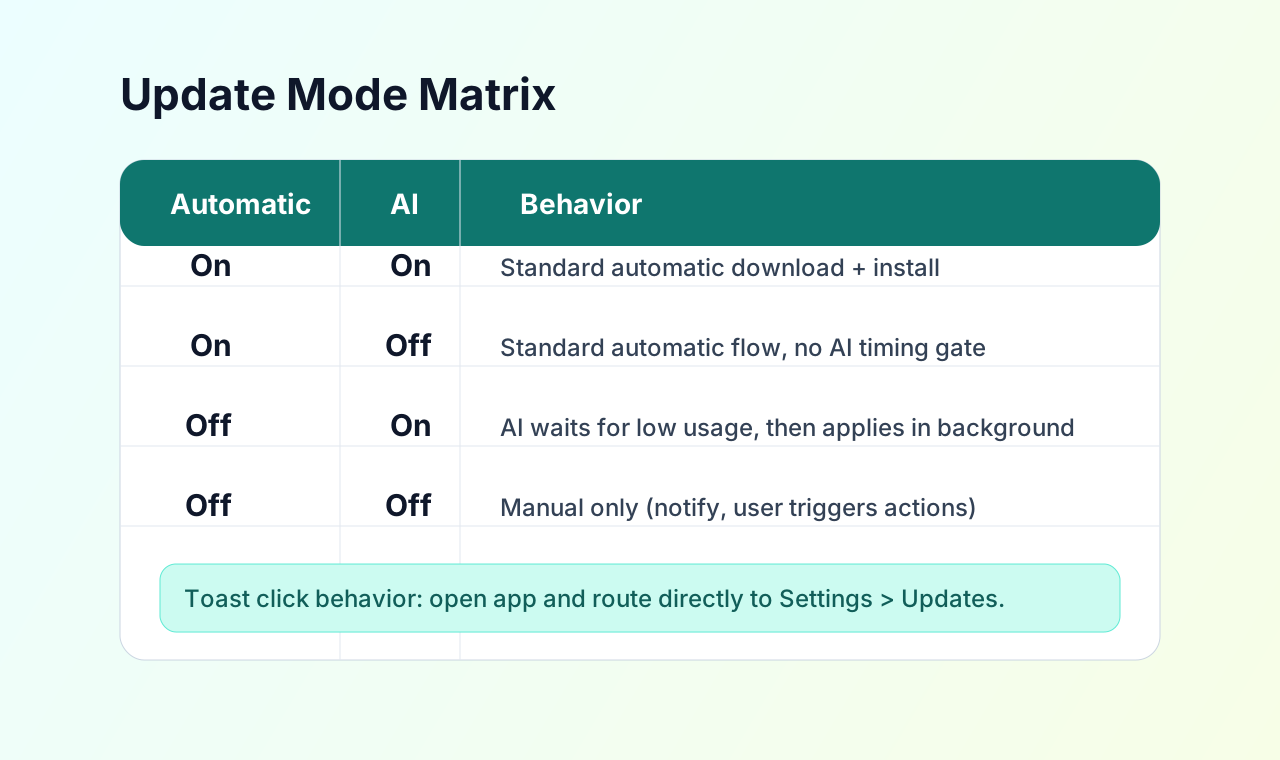
| Automatic Updates | AI Update | Behavior |
|---|---|---|
| On | On | Standard automatic update flow is used. The app checks, downloads, and applies updates automatically. |
| On | Off | Standard automatic update flow is used. AI does not add extra gating. |
| Off | On | AI-controlled flow is used. The app waits for low device activity, then downloads and applies the update in the background. |
| Off | Off | Manual mode. The app only reports availability; user starts download/install manually. |
Manual Actions (Always Available)
Even when automation is disabled, users can still:
- Start update download manually from the Updates area.
- Start install manually for installer/extract packages.
- Re-run failed update actions from the same panel.
Notifications And Deep Link Behavior
When an update is found, Windows toast notifications can be shown. If a user clicks the toast:
- HeimerClean opens/focuses the app window.
- The app routes directly to Settings > Updates.
- The update card is shown as the primary focus area.
This behavior also applies to background service notifications that expose update actions.
Release Notes Icon In Update Card
Each update card can include an info icon (i). Clicking it opens release details in docs:
https://docs.heimerclean.com/updates/<version>
Example:
https://docs.heimerclean.com/updates/2.2.7
Recommended Defaults
For most users:
- Keep Automatic Updates = On.
- Keep AI Update = On if you want AI-assisted timing when needed.
- Use manual actions only when you need full control over package timing.